Clients
Section: Customer Relationship Management
URL:/admin/clients
Page title: (2) Clienți
Overview
The Clients module stores every customer organisation you do business with — basic identity (legal name, fiscal code, addresses), main contact, group/discount classification, and the relationship history (invoices, estimates, projects, tickets, payments).
Business value
A single, deduplicated source of truth for every customer relationship — replacing scattered spreadsheets, email threads, and tribal knowledge. Every interaction (invoices, estimates, tickets, projects, communications, payments) is linked to the client record, so any team member can pick up where another left off.
- Who uses it: Sales, account managers, customer success, finance/AR, support agents, executives
- Key benefit: Eliminates "who is this customer and what do we have with them?" — the answer is one click away.
- Metrics it influences: Customer lifetime value, repeat purchase rate, customer data quality
Typical use cases:
- A new account manager inherits a portfolio and gets full context in minutes
- Finance checks a client's payment history before extending credit
- Support sees the client's active projects when a ticket comes in, so they triage faster
- Sales segments customers by group/discount for targeted upsell campaigns
At a glance
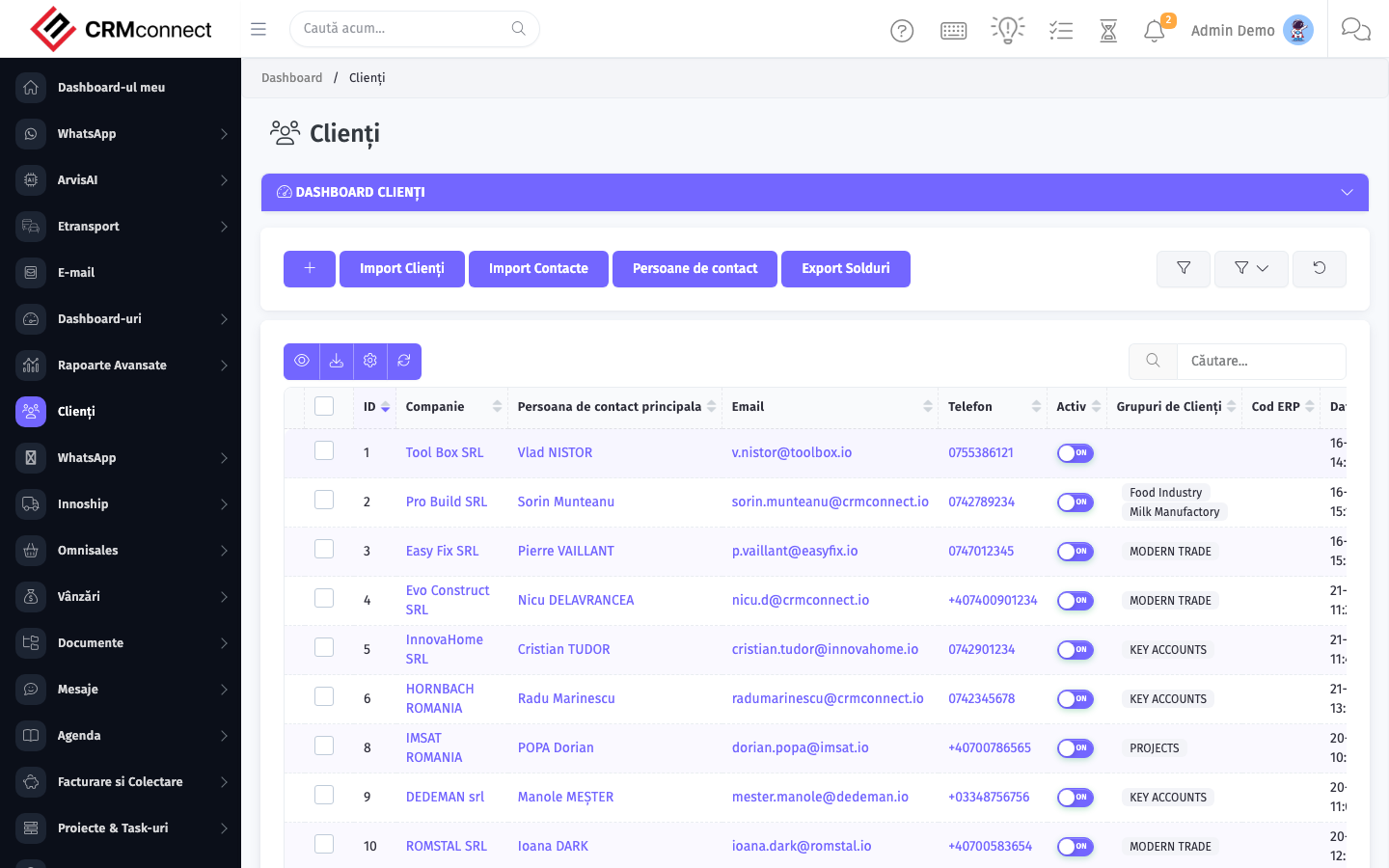
Accessing this module
From the admin sidebar, navigate to Clients, or open the URL directly:
/admin/clients
List view
The list view shows existing clients records. Use it to search, filter, sort, and bulk-act on items.
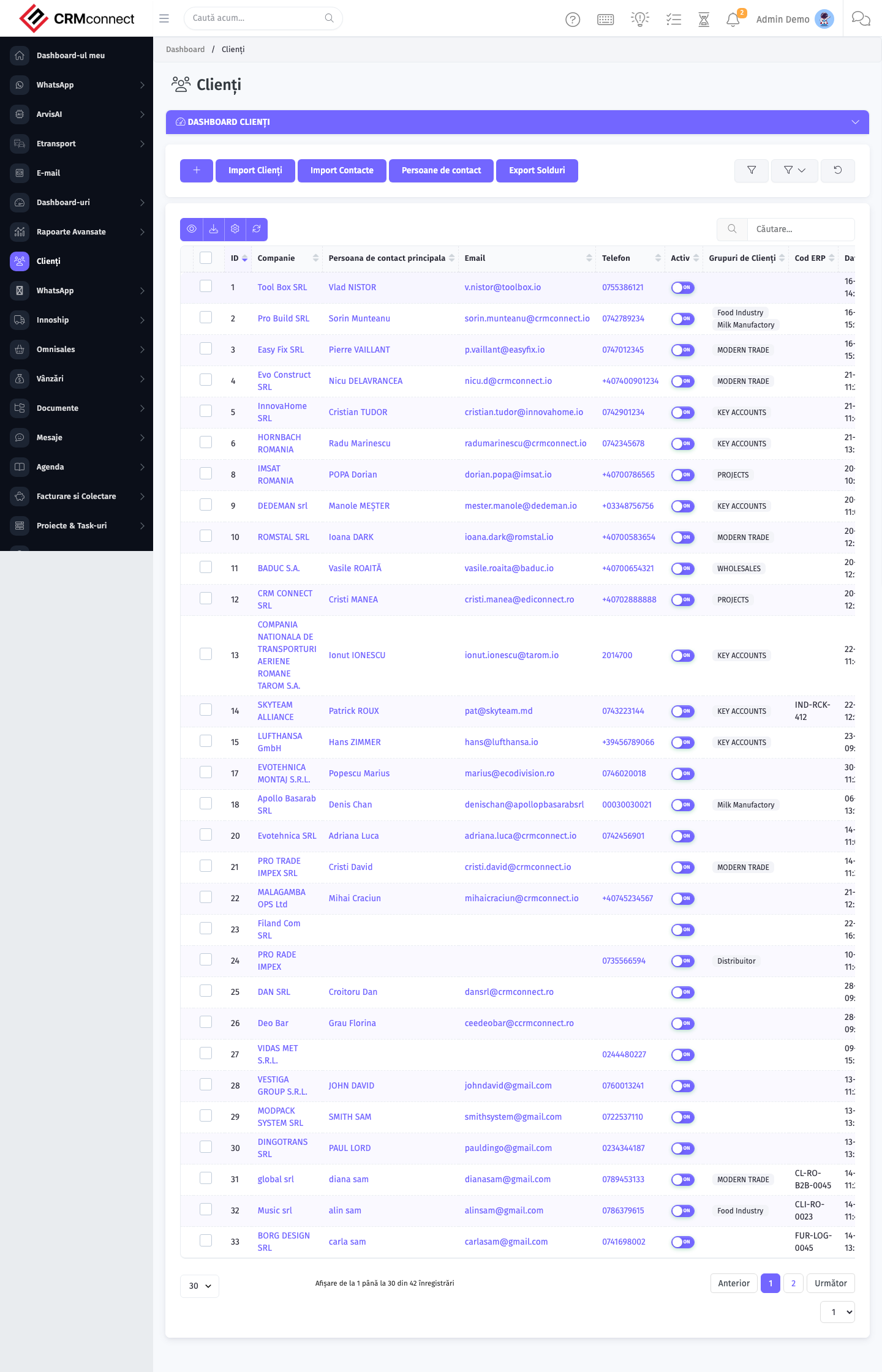
Create / edit form
Open the create form to add a new clients record. Editing an existing record uses the same form pre-populated with current values.

Common actions
- View existing records — open Clients from the sidebar to see the list view.
- Search and filter — use the search box and column filters to find records.
- Create a new record — click the Add / New button (or follow the "Create" URL above) and fill in the required fields.
- Edit a record — click a row to open the detail view, then use the edit action.
- Delete a record — use the row's delete action; deletion may be soft or hard depending on the module.
- Bulk operations — select multiple rows via the checkboxes and apply a bulk action from the toolbar (export, delete, status change, etc., where supported).
Deleting a client removes the direct link to that client from all associated invoices, projects, and tickets. The documents are preserved but will no longer be browsable from a client profile. Archive inactive clients instead of deleting them to maintain a complete audit trail.
Use Client Groups to apply automatic discounts across an entire segment without editing each client individually. Assign a group in the create/edit form — the group's discount rule is applied at line-item level on every new invoice and estimate for clients in that group.
API
This module is available via the REST API.
Authentication. All API requests require the header authtoken: <token> (generate one at /admin/api/api_management).
Base URL. https://your-domain.tld/api/
Key endpoints:
| Method | Path | Purpose |
|---|---|---|
POST |
{{base_url}}customers |
Add New Client |
PUT |
{{base_url}}customers/:id |
Update Client |
DELETE |
{{base_url}}delete/customers/:id |
Delete Client |
GET |
{{base_url}}customers |
List all Clients |
GET |
{{base_url}}customers/:id |
Show One |
See the full payload schemas, query parameters, and example responses in the API reference (`Clients`).
Captured: 2026-05-10T09:51:26.776Z · Source: demo.crmconnect.io/admin/clients