Recurring Invoices
Section: Sales & Billing
URL:/admin/invoices/recurring
Page title: (2) Facturi recurente
Overview
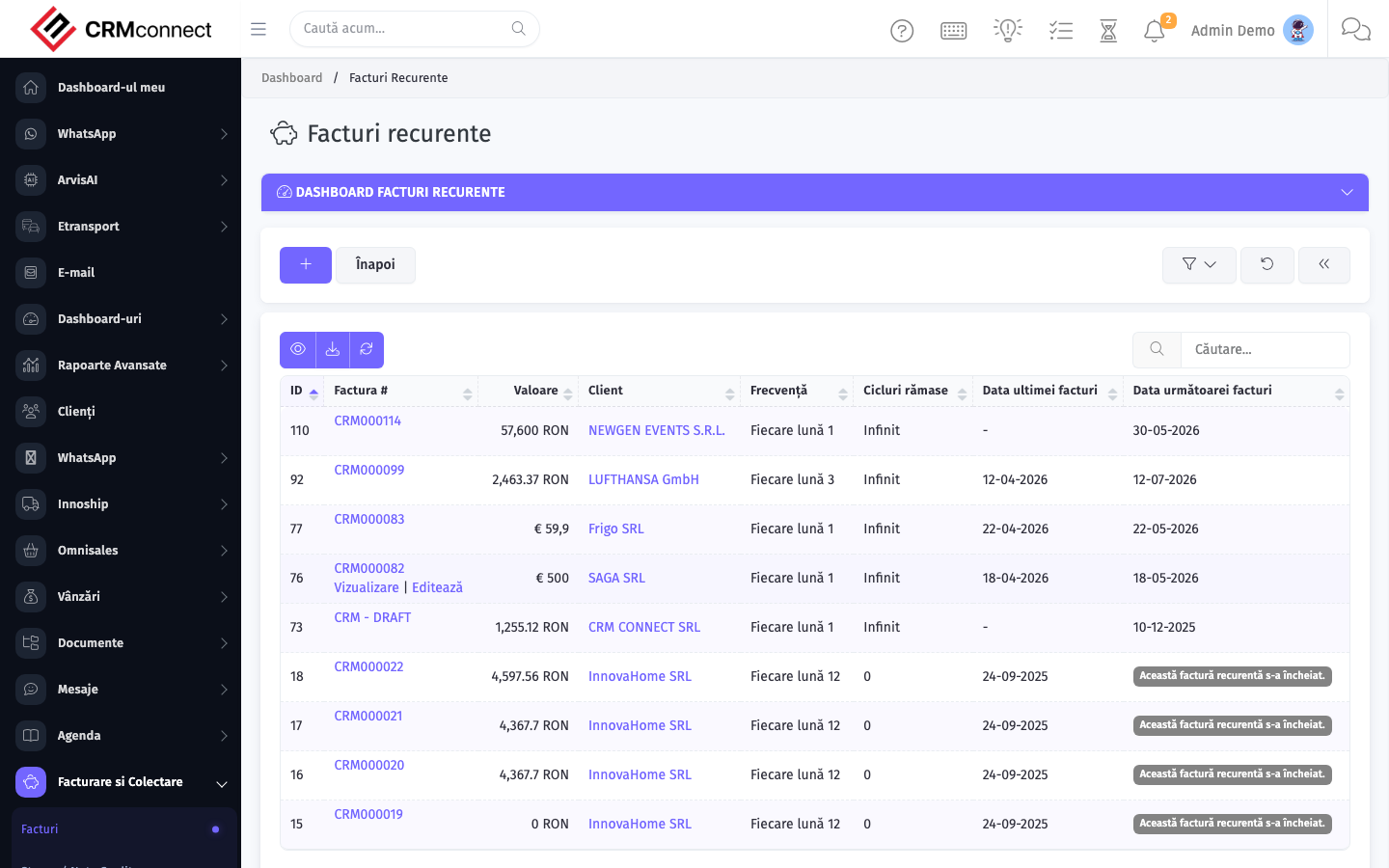
Recurring invoices automate the issuance of invoices on a defined schedule (weekly, monthly, etc.) for retainer or subscription billing.
Business value
Automates the issuance of invoices on a defined schedule (monthly retainer, quarterly subscription, annual maintenance) so revenue keeps flowing without anyone having to remember.
- Who uses it: Finance / AR, customer success, sales operations
- Key benefit: Eliminates manual recurring billing — saves hours per month and prevents missed invoices = lost revenue.
- Metrics it influences: Recurring revenue, billing automation rate, missed-invoice incidents
Typical use cases:
- Bill a SaaS subscription on the 1st of every month, automatically
- Auto-bill a maintenance contract quarterly
- Send the invoice + payment link without finance lifting a finger
At a glance
Accessing this module
From the admin sidebar, navigate to Recurring Invoices, or open the URL directly:
/admin/invoices/recurring
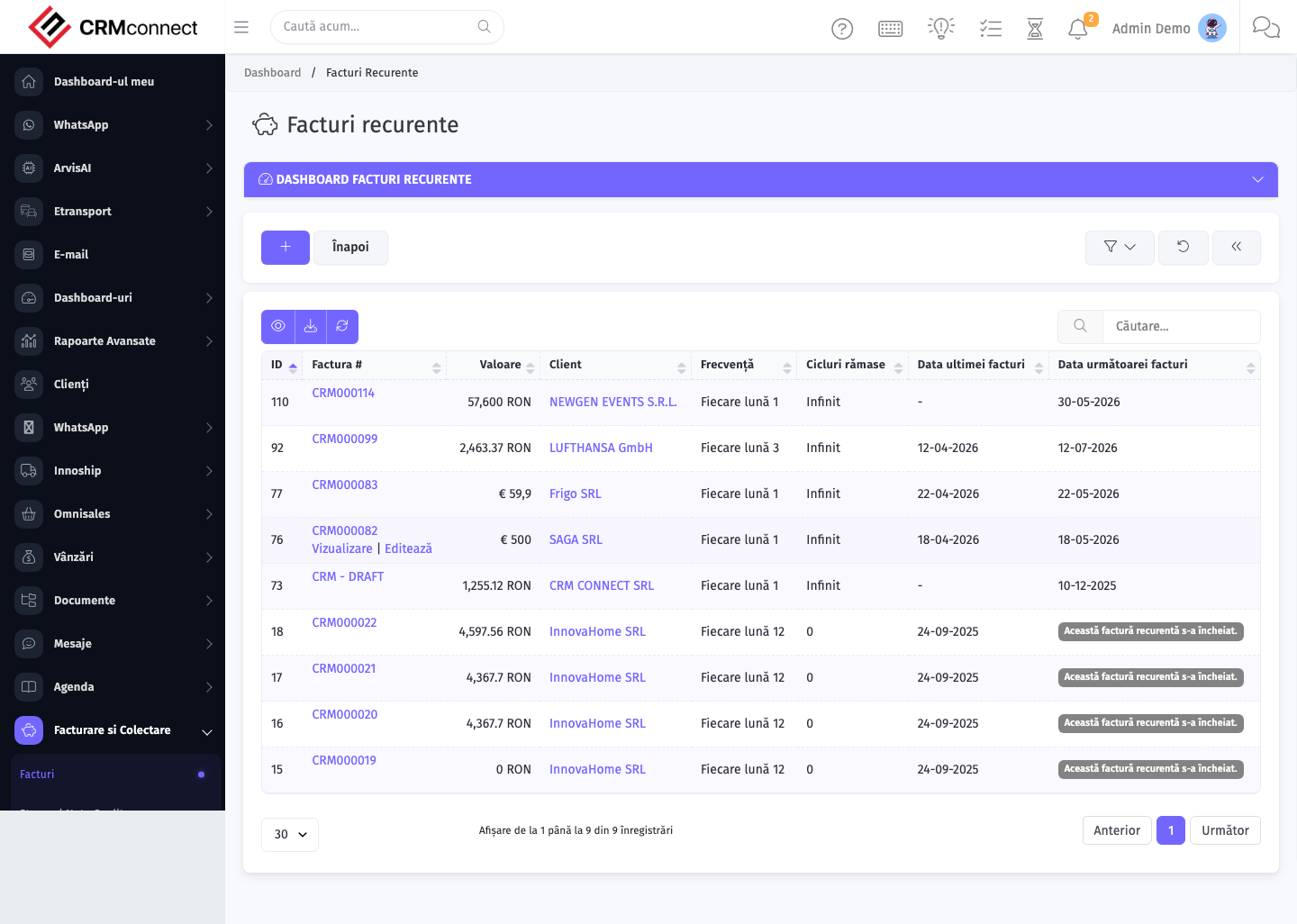
List view
The list view shows existing recurring invoices records. Use it to search, filter, sort, and bulk-act on items.
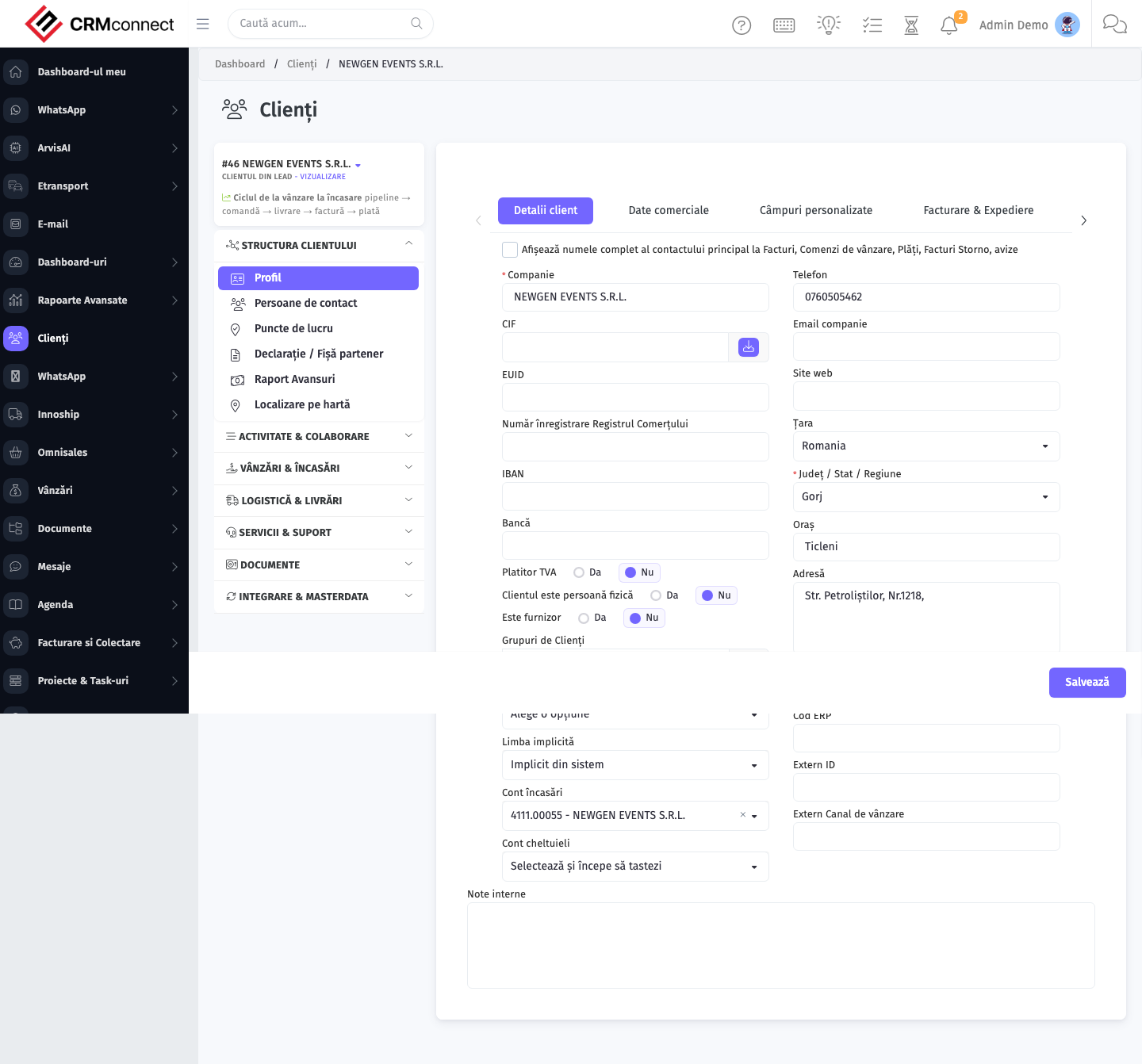
Create / edit form
Open the create form to add a new recurring invoices record. Editing an existing record uses the same form pre-populated with current values.
Common actions
- View existing records — open Recurring Invoices from the sidebar to see the list view.
- Search and filter — use the search box and column filters to find records.
- Create a new record — click the Add / New button (or follow the "Create" URL above) and fill in the required fields.
- Edit a record — click a row to open the detail view, then use the edit action.
- Delete a record — use the row's delete action; deletion may be soft or hard depending on the module.
- Bulk operations — select multiple rows via the checkboxes and apply a bulk action from the toolbar (export, delete, status change, etc., where supported).
Set the Next Invoice Date a few days before the actual due date — this gives the client time to process the invoice before it falls due, reducing late payments on subscription and retainer billing.
Pausing a recurring invoice stops future generation but does not retroactively cancel invoices that already ran. If a cycle ran when it shouldn't have, void the generated invoice manually before pausing the series.
Captured: 2026-05-10T09:51:26.776Z · Source: demo.crmconnect.io/admin/invoices/recurring