Invoices
Section: Sales & Billing
URL:/admin/invoices
Page title: (2) Facturi
Overview
Invoices are the legal sales documents issued to clients. The module tracks status (draft, sent, paid, partially paid, overdue), payment links, e-invoicing, and reminders.
Business value
The legal sales document that triggers cash collection. Tracks status (draft → sent → paid / overdue / partially paid), supports e-invoicing, payment links, automated reminders, and reconciliation against bank statements.
- Who uses it: Finance / AR, sales operations, executives
- Key benefit: Reduces days-sales-outstanding (DSO) by automating reminders and giving customers a frictionless "pay now" option.
- Metrics it influences: DSO, % of invoices paid on time, AR aging
Typical use cases:
- Issue an invoice from an accepted sales order in one click
- Send automated payment reminders at +7, +14, +30 days overdue
- Customer pays via a hosted payment link — payment auto-reconciles
- Export e-invoices for tax authority submission (e.g. Romanian e-Factura)
At a glance
Accessing this module
From the admin sidebar, navigate to Invoices, or open the URL directly:
/admin/invoices
List view
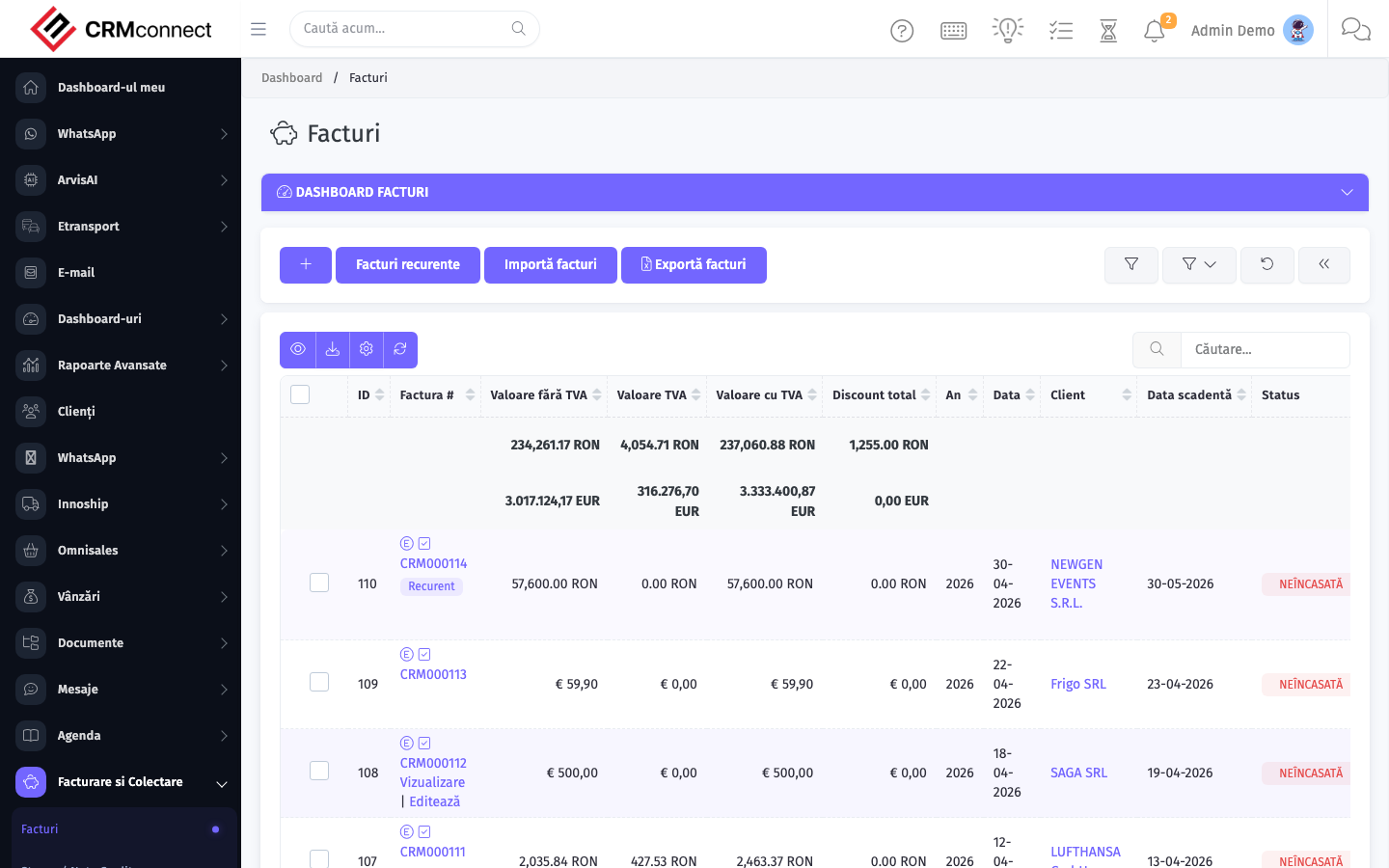
The list view shows existing invoices records. Use it to search, filter, sort, and bulk-act on items.

Create / edit form
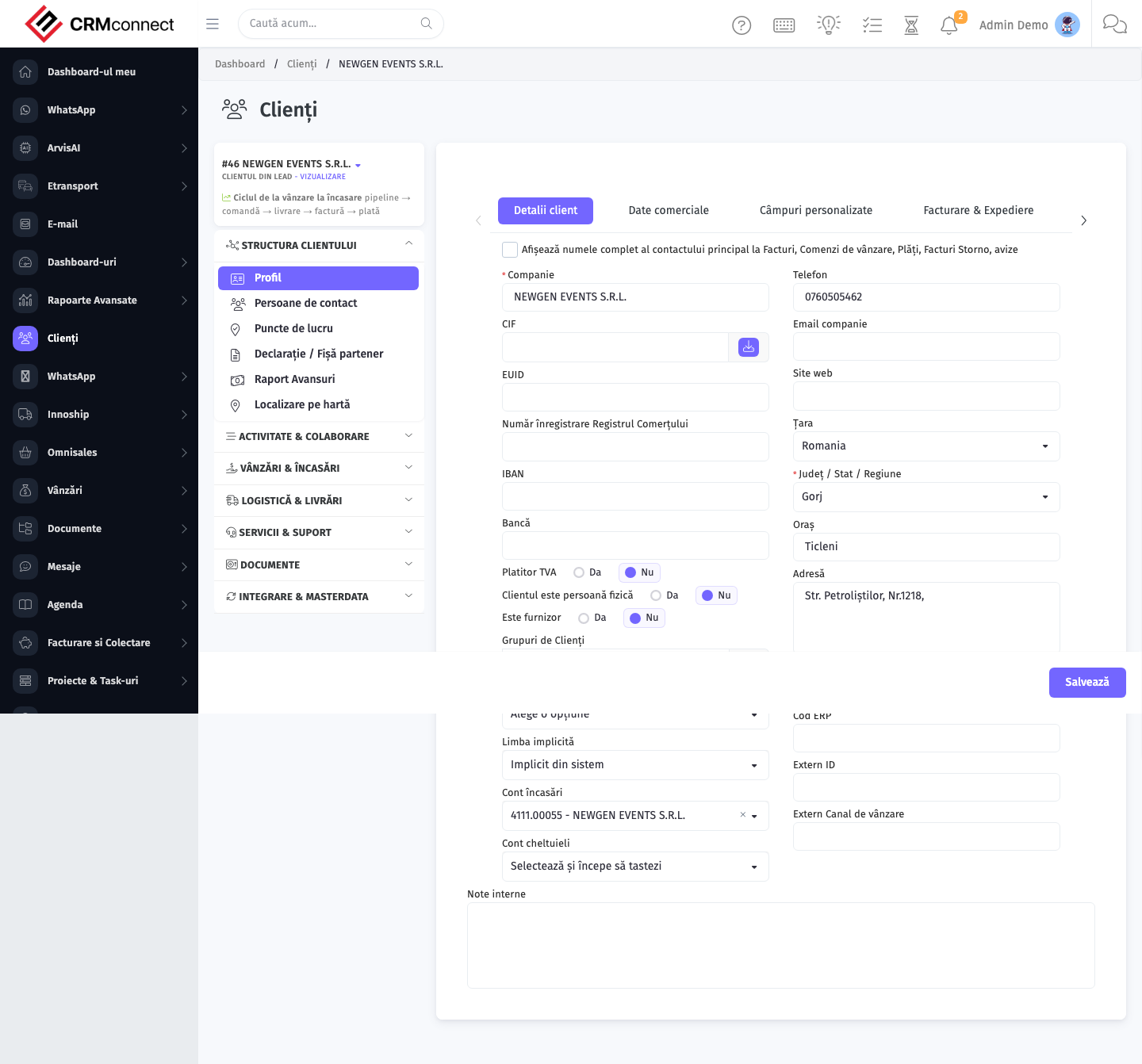
Open the create form to add a new invoices record. Editing an existing record uses the same form pre-populated with current values.
Common actions
- View existing records — open Invoices from the sidebar to see the list view.
- Search and filter — use the search box and column filters to find records.
- Create a new record — click the Add / New button (or follow the "Create" URL above) and fill in the required fields.
- Edit a record — click a row to open the detail view, then use the edit action.
- Delete a record — use the row's delete action; deletion may be soft or hard depending on the module.
- Bulk operations — select multiple rows via the checkboxes and apply a bulk action from the toolbar (export, delete, status change, etc., where supported).
Once an invoice has been sent to the client, editing the amounts or line items is not recommended — it changes a document the client already received. To correct a sent invoice, issue a Credit Note against it, then re-invoice for the correct amount. This preserves a clean audit trail.
Enable payment links on every invoice (Settings → Payment Gateways). Clients can pay directly from the invoice email without logging in. Invoices with payment links are typically paid 40–60% faster than those requiring bank transfer with a reference code.
For Romanian companies: the e-Factura integration submits the invoice XML to ANAF automatically. Enable it in Settings → e-Invoicing. Both the submission status and the ANAF response code are recorded on the invoice record.
API
This module is available via the REST API.
Authentication. All API requests require the header authtoken: <token> (generate one at /admin/api/api_management).
Base URL. https://your-domain.tld/api/
Key endpoints:
| Method | Path | Purpose |
|---|---|---|
POST |
{{base_url}}invoices |
Add new Invoice |
GET |
{{base_url}}invoices?nr_page&per_page |
List all Invoices |
GET |
{{base_url}}invoices/:id |
One Invoice |
GET |
{{base_url}}invoices/search/test |
Search Invoice Information |
PUT |
{{base_url}}invoices/:id |
Update Invoice |
DELETE |
{{base_url}}delete/invoices/85 |
Delete Invoice |
See the full payload schemas, query parameters, and example responses in the API reference (`Invoices`).
Captured: 2026-05-10T09:51:26.776Z · Source: demo.crmconnect.io/admin/invoices