Diagrams
Section: Integrations & AI
URL:/admin/diagramy
Page title: (2) Diagrame
Overview
Diagrams module — flowcharts, org charts, and process diagrams attached to records.
Business value
Diagrams module — flowcharts, org charts, process diagrams — attached to records or shared as standalone artefacts. Visual documentation without leaving the platform.
- Who uses it: Operations, PMO, product, training
- Key benefit: Faster knowledge-transfer than paragraphs of text.
Typical use cases:
- Process flow attached to an SOP
- Org chart for a new hire
At a glance
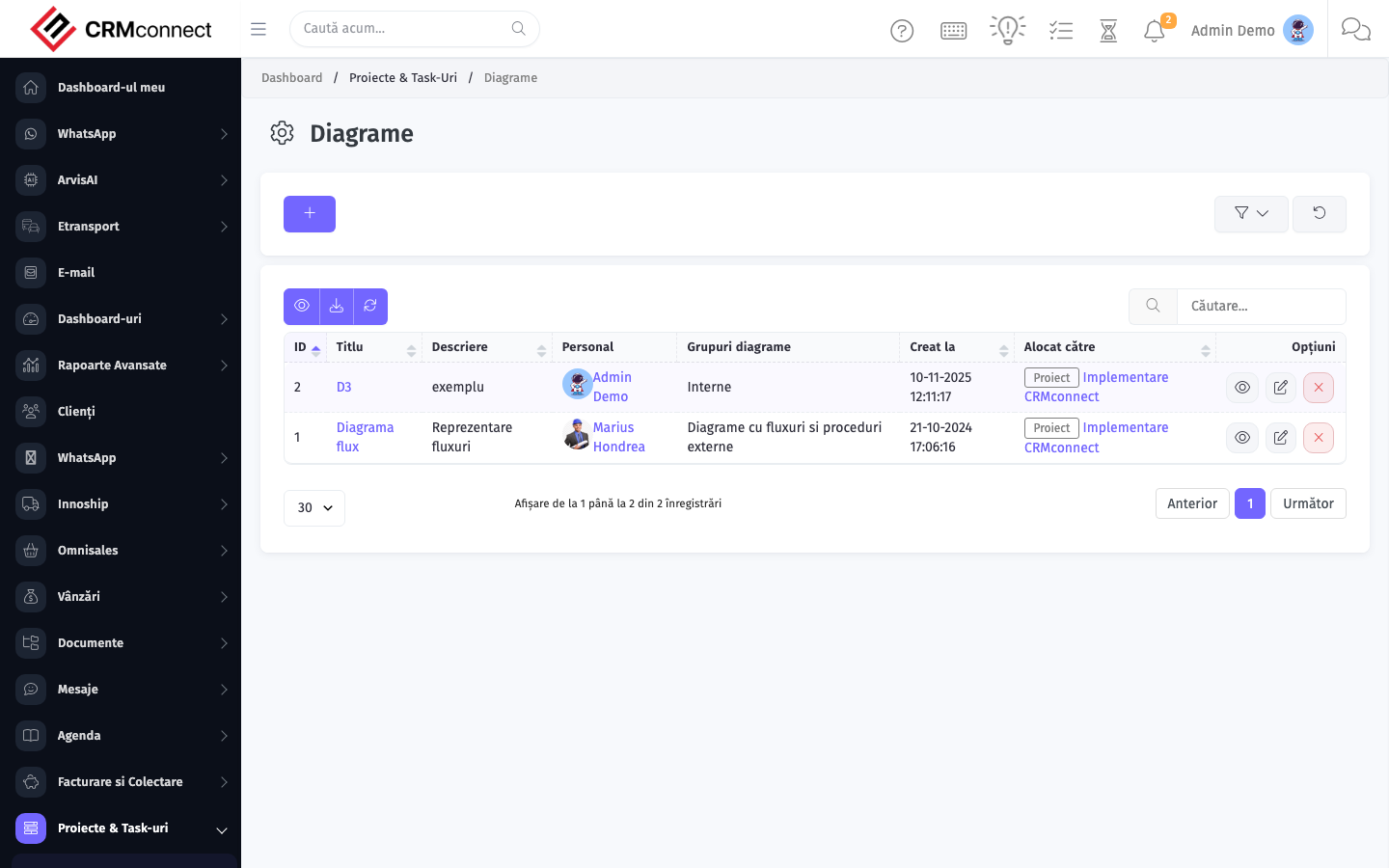
Accessing this module
From the admin sidebar, navigate to Diagrams, or open the URL directly:
/admin/diagramy
List view
The list view shows existing diagrams records. Use it to search, filter, sort, and bulk-act on items.
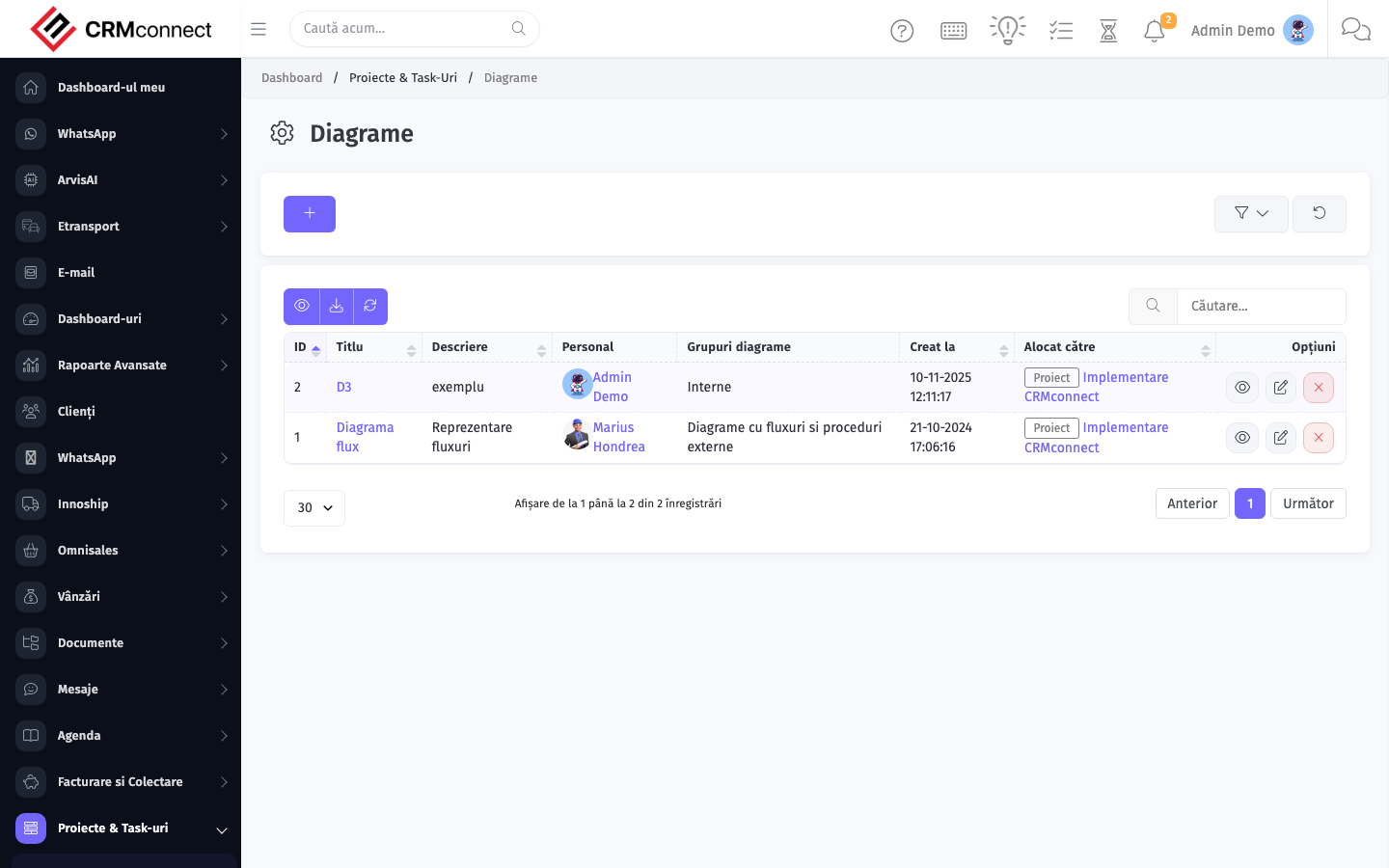
Common actions
- View existing records — open Diagrams from the sidebar to see the list view.
- Search and filter — use the search box and column filters to find records.
- Create a new record — click the Add / New button (or follow the "Create" URL above) and fill in the required fields.
- Edit a record — click a row to open the detail view, then use the edit action.
- Delete a record — use the row's delete action; deletion may be soft or hard depending on the module.
- Bulk operations — select multiple rows via the checkboxes and apply a bulk action from the toolbar (export, delete, status change, etc., where supported).
Attach process diagrams directly to SOP documents, project records, or client contracts — team members find the visual context in the same place as the text without switching to an external diagramming tool.
Diagrams are stored inside the CRM and accessible to any user with the appropriate record-level permission — no external diagram tool account or subscription is required for viewers.
Captured: 2026-05-10T09:51:26.776Z · Source: demo.crmconnect.io/admin/diagramy